
When your drawing has more than one frame, Inktica can export it as a single animated file or as a sprite sheet for a game. All formats use the frame durations you set in the editor.
Export an animation
- Open the drawing and tap ⋮ in the top-right corner, then tap Export.
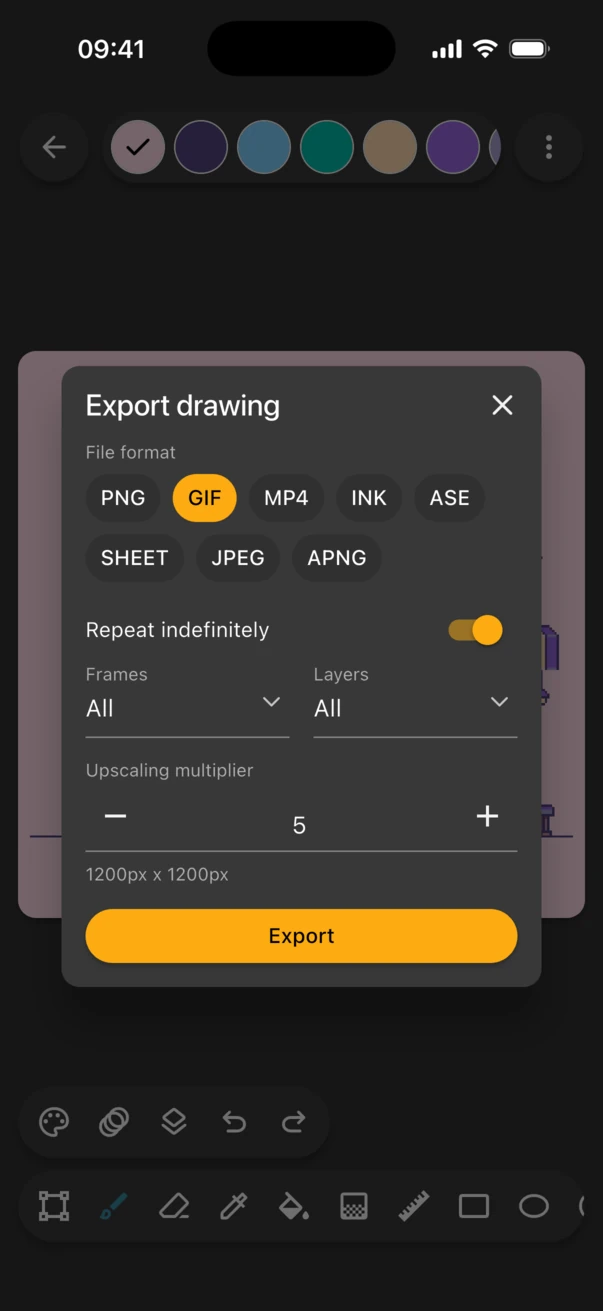
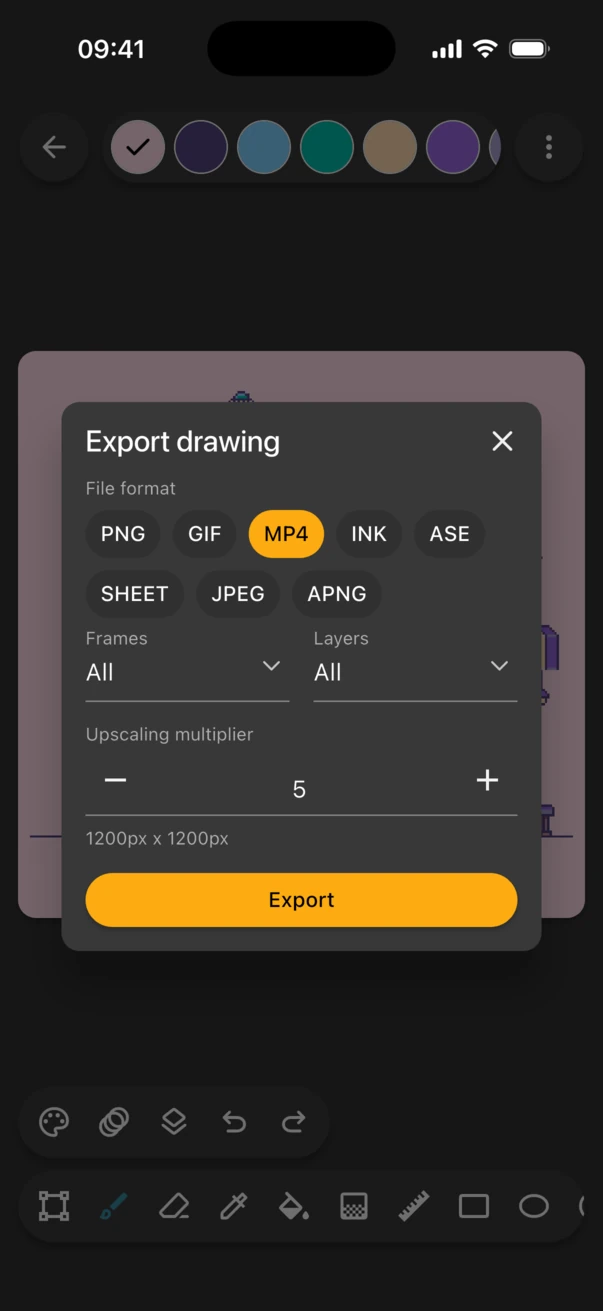
- Under File format, choose GIF, APNG, MP4 or SHEET.
- Check that Frames is set to All, or pick the frames you want with Select frames....
- Raise the Upscaling multiplier so the animation is at least 1000px wide. Small animations look blurry once apps enlarge them.
- Tap Export and choose where to save the file.
Which format should I use?
| Format | Best for | Good to know |
|---|---|---|
| GIF | Discord, X, websites and chats | Plays almost everywhere. Up to 256 colours per frame, which suits pixel art. |
| APNG | Websites | Animated PNG with full colour and transparency. Fewer apps support it than GIF. |
| MP4 | Instagram, TikTok and YouTube | A video file. No transparency. Its size is rounded up to a multiple of 16px. |
| SHEET | Game engines such as Godot, Unity and GameMaker | One PNG with every frame laid out in a row, a column or a grid. |
Make a GIF loop
GIFs loop forever by default. To play the animation a set number of times instead, turn off Repeat indefinitely and enter a Repeat count.
Set the timing of each frame
Exports use the duration of each frame in your drawing. To change it, open the Frames panel in the editor, tap ⋮ next to a frame and choose Set duration. To give every frame the same duration, use Set duration of all in the panel's own ⋮ menu. Durations are in milliseconds: 100 ms per frame plays at 10 frames per second.
Export a sprite sheet
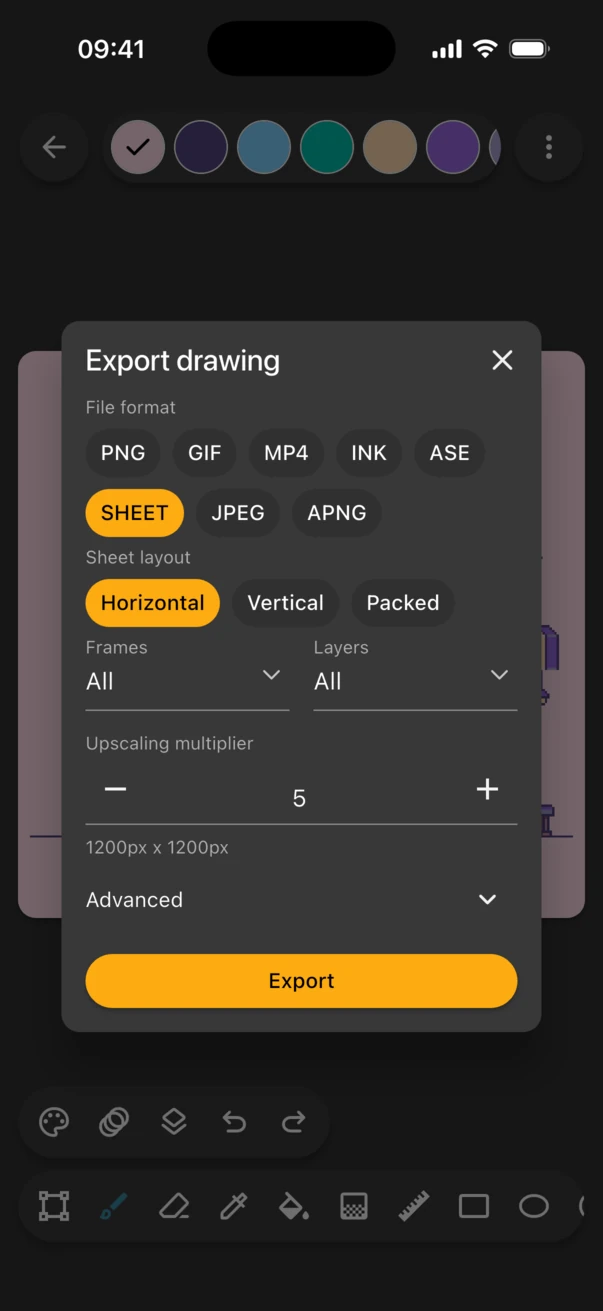
Choose SHEET and pick a Sheet layout:
- Horizontal: all frames in one row.
- Vertical: all frames in one column.
- Packed: frames arranged in a grid that's as close to square as possible.
The size shown under the multiplier is the size of one frame, not the whole sheet. For a game engine, export at 1× so each pixel of your sprite stays one pixel of the texture, then scale it up in the engine with nearest-neighbour (point) filtering.
Export frames as separate images
Choose PNG with more than one frame selected and Inktica saves a ZIP archive with one image per frame. How to export an image covers the PNG options.
Frequently asked questions
Why is my GIF blurry after I post it?
The platform enlarged a small GIF and smoothed it. Export again with a higher upscaling multiplier so the GIF is already large when you upload it.
Why is the MP4 slightly bigger than I set?
Video encoders need dimensions divisible by 16, so Inktica rounds the size up and shows a warning when that happens.
How many frames can an animation have?
Up to 4 frames in the free version and as many as you like with Pro. See Inktica Free vs Pro.