
Exporting saves a copy of your drawing as a regular image file that you can post, print or use in a game. The drawing itself stays in Inktica, unchanged.
Export a drawing
- Open the drawing and tap ⋮ in the top-right corner.
- Tap Export.
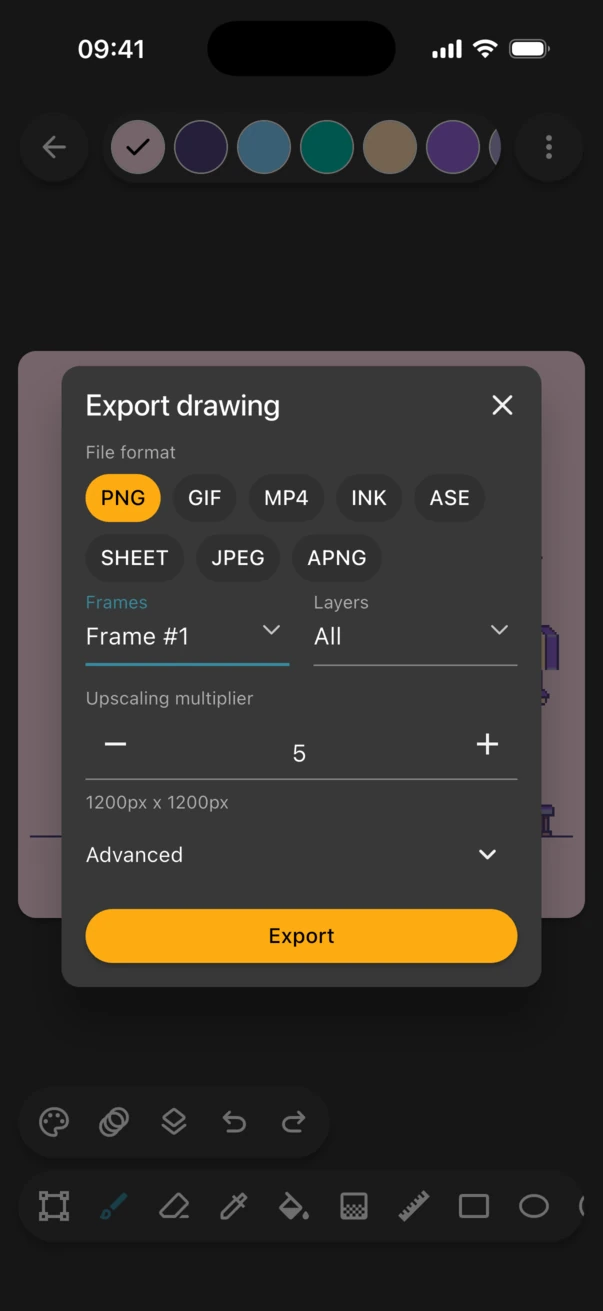
- Under File format, choose PNG.
- Set the Upscaling multiplier. The final size of the image is shown below it.
- Tap Export, then choose where your phone should save the file.
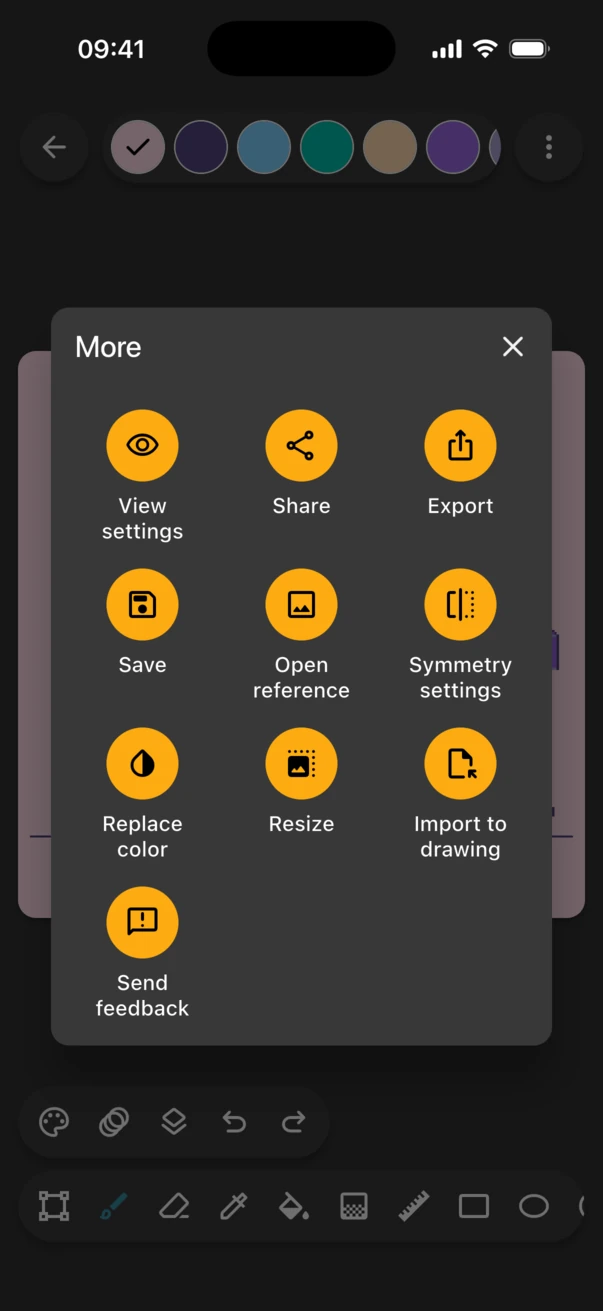
You can also export from the gallery without opening the drawing: press and hold the drawing to select it, then tap Export at the top of the screen.
PNG or JPEG?
| Format | Best for |
|---|---|
| PNG | Pixel art. Lossless, so every pixel stays exactly as you drew it, and it keeps transparency. |
| JPEG | Apps that don't accept PNG. Lossy, so it can blur pixel edges, and it doesn't support transparency. |
Use PNG unless an app needs a JPEG. If you do export a JPEG, open Advanced and set Quality to 100 to keep it as sharp as possible.
Make the image big enough
At 1×, the exported image has exactly as many pixels as your canvas, which is tiny on today's screens. Other apps then enlarge it and blur it. Raise the multiplier until the image is at least 1000px. Why is my pixel art blurry? explains how to pick the right multiplier.
Export one frame or only some layers
If your drawing has more than one frame or layer, the export dialog shows Frames and Layers menus:
- Frames: keep All, or choose Select frames... and tap the frames you want. Exporting more than one frame as PNG or JPEG creates a ZIP archive with one image per frame.
- Layers: choose All, Visible or Select layers... to leave out layers such as sketches or backgrounds.
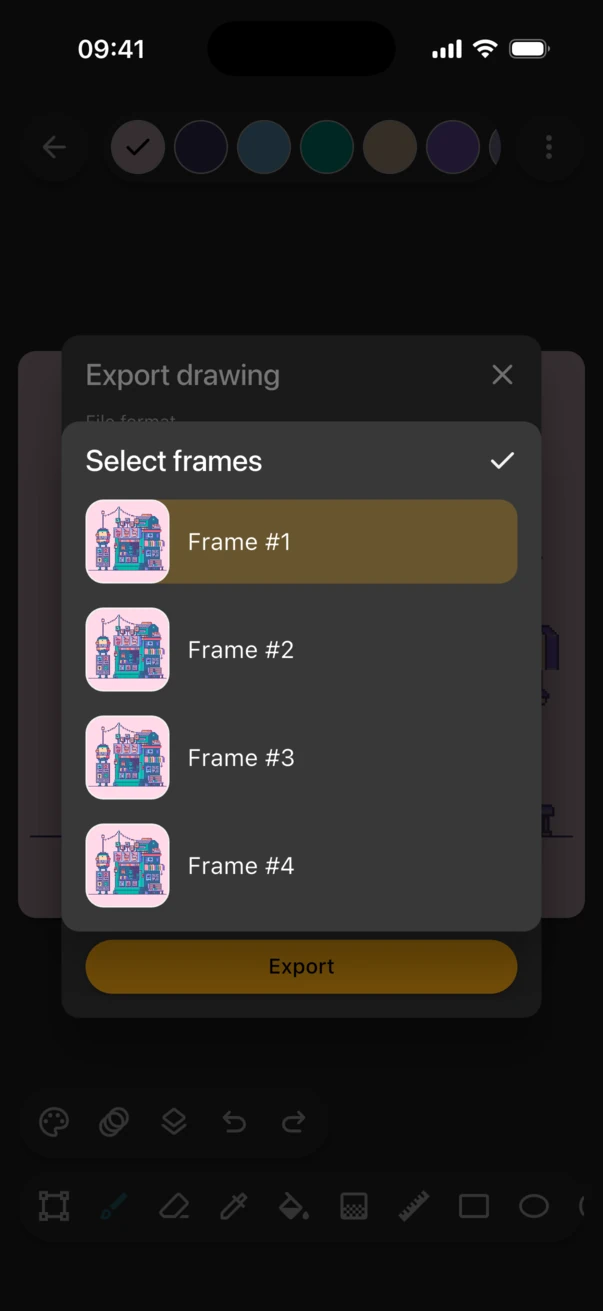
To save an animation as one file instead, see how to export an animation.
Transparent backgrounds
PNG keeps transparency. Pixels you haven't painted or have erased stay transparent in the exported file, which is what you want for sprites and stickers. For a solid background, fill a layer under your drawing with a colour before exporting.
Other export formats
- INK saves an Inktica drawing file with all its layers and frames. Use it as a backup or to move a drawing to another device, then open it with Import.
- ASE saves an Aseprite file you can keep editing on a computer. It's part of Inktica Pro.
- GIF, APNG, MP4 and SHEET are for animations.